
Enter an amount, pick a GST rate, and choose whether the amount already includes GST. The calculator shows the net value, the GST component and the gross total. Working backwards from a GST-inclusive figure is where most manual errors happen, because you cannot simply subtract the rate.
Everything is calculated in your browser. Nothing you type here is sent to a server or stored.
Adding GST versus extracting GST
Adding GST is simple multiplication: a net amount times one plus the rate. Extracting it is where people go wrong. Taking 18% off a GST-inclusive total is not the same as dividing by 1.18, and the difference grows with the invoice. On a 118 gross amount at 18%, the GST is 18, not 21.24. The correct method is always to divide the gross figure by one plus the rate.
- Add GST: net x (1 + rate / 100)
- Extract GST: gross / (1 + rate / 100) gives the net
- GST component: gross minus that net figure
Why the rounding matters on invoices
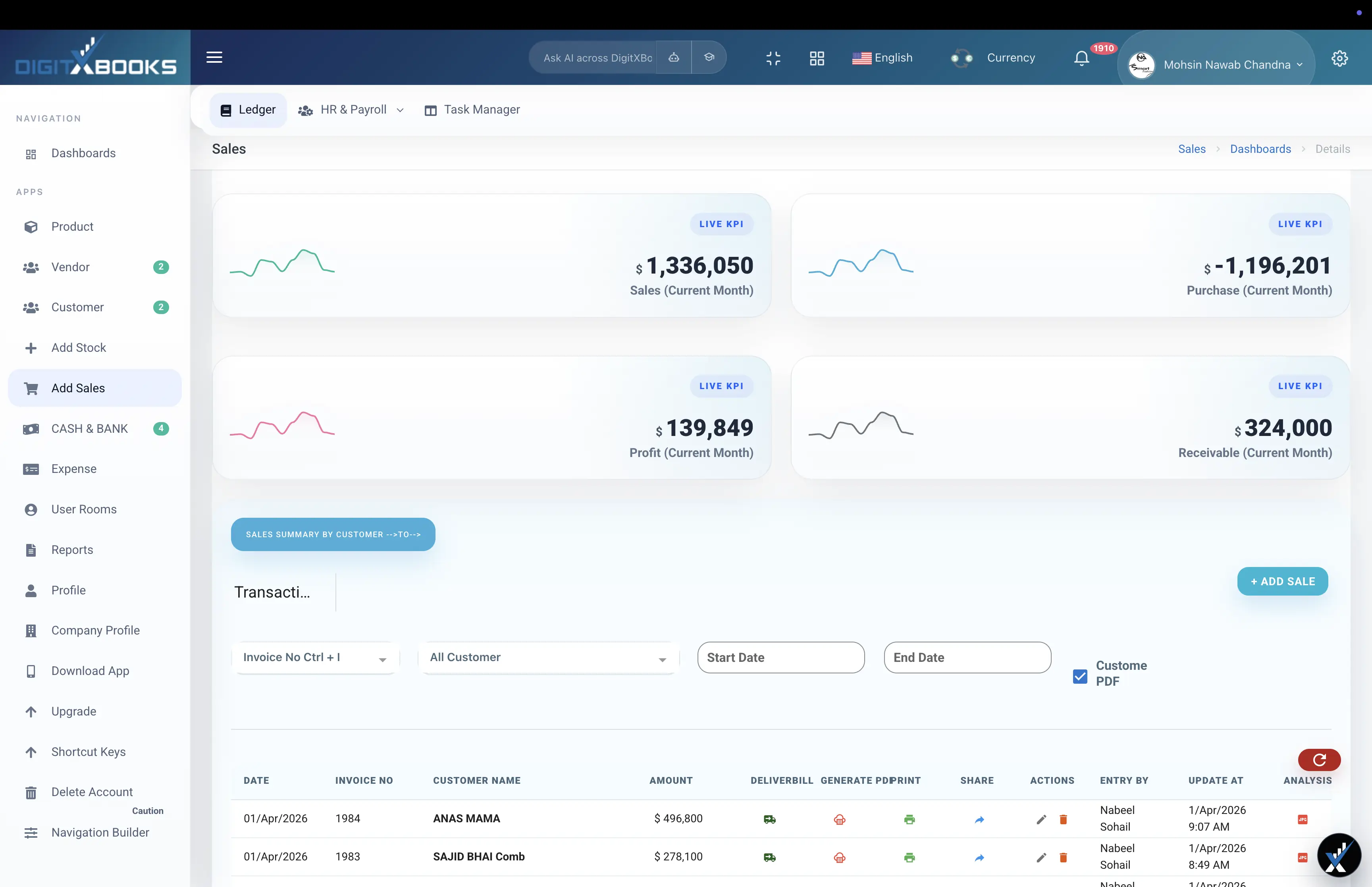
Rounding per line item and rounding on the invoice total produce different answers, and tax authorities generally expect one consistent method. Keeping the calculation at line level and letting the ledger total the components is the safer approach, which is how DigitXBooks records sales and purchase rows.
- Decide line-level or total-level rounding and apply it consistently
- Keep the tax component recorded, not just the gross figure
- Store the rate used, since rates change and old invoices must still reconcile
How to calculate GST on an amount
Work out the GST component, net value and gross total for any amount and rate.
- Enter the amount Type the invoice or item amount into the amount field.
- Choose the GST rate Select the rate that applies to the goods or service.
- State whether GST is included Choose 'excludes GST' to add tax on top, or 'includes GST' to extract the tax from a gross figure.
- Read the result The net amount, GST component and gross total are calculated instantly.
FAQs
How do I remove GST from a total?
Divide the gross amount by one plus the rate as a decimal. At 18%, divide by 1.18 to get the net, then subtract that net from the gross to get the GST component. Subtracting 18% directly from the gross is the common mistake and always understates the net.
How do I add GST to an amount?
Multiply the net amount by one plus the rate as a decimal. At 18%, multiply by 1.18. The GST component on its own is the net amount multiplied by 0.18.
Is this GST calculator free to use?
Yes, completely free with no signup. The calculation runs entirely in your browser, so nothing you type is sent to a server.
Which GST rates does it support?
The common rates of 0%, 5%, 12%, 17%, 18% and 28% are preset, which covers the standard slabs used across several jurisdictions.
Solutions
- VAT Calculator Add or remove VAT at any rate
- Free Invoice Generator Build a clean invoice with tax, discount and totals
- Billing and Invoice Software DigitXBooks billing invoice software manages sales invoices, product rows, customer receivables, payment-in records, sales returns, profit reports, and invoice history.
- Ledger and Financial Reports DigitXBooks financial reporting software covers ledgers, receivables, payables, cash flow, sales, purchases, inventory, expenses, payroll reports, and AI summaries.